How to install a marketing skill in Claude, ChatGPT and Gemini
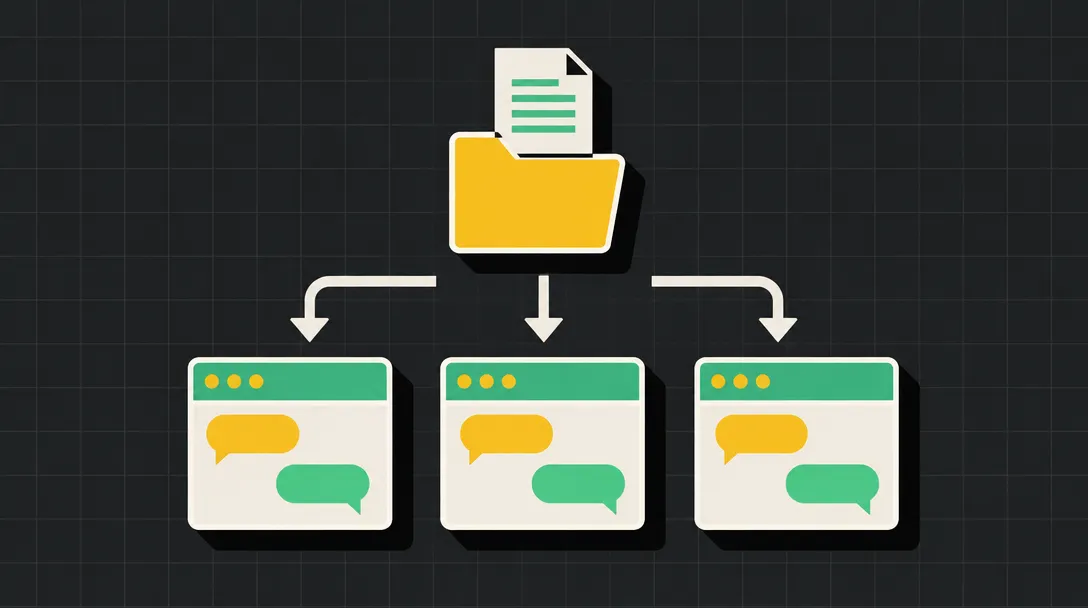
To install a marketing skill, put its text or its SKILL.md file where your assistant keeps standing instructions. In the Claude apps you upload the skill as a zip file, and in Claude Code you save its folder in a skills directory. In ChatGPT and Gemini you can upload the skill where your account supports skills, or paste the text into a project’s instructions or a Gem. Any other agent can take the text as a system prompt.
What you need
- The skill text. Every free skill page on Marketing Skill Store shows the full text, with options to copy it or download it as
SKILL.md. - An account in the assistant you want to use. Some features depend on your plan or workspace settings. Each section below says where.
- For Claude Code, access to the folder where you keep personal or project files.
A note on menus: product menus change often. The paths below are correct at the time of writing. If a label has moved, the linked help page will have the current one.
How do I install a skill in the Claude apps?
The Claude apps load custom skills as folders packed into a zip file.
- Turn on code execution. Skills need it. At the time of writing, on individual plans the setting is “Code execution and file creation” (shown as “Create and edit files” in newer layouts) under Settings > Capabilities. On Team and Enterprise plans, an owner turns it on in the organization settings.
- Prepare the folder. Make a folder named after the skill, put the
SKILL.mdfile inside and compress the folder into a zip file. - Upload it. Go to Customize > Skills, click the + button, choose Create skill, then Upload a skill, and select the zip file.
- Check it is switched on. The skill appears in your skills list with a toggle. Leave it on.
search-terms-negative-keywords/
└── SKILL.md
Uploaded skills stay private to your account until you share them, and Team and Enterprise plans let you share a skill with colleagues. Anthropic’s help article on using skills in Claude lists the plans that include skills and has the current menu paths.
One more detail from the Agent Skills docs: custom skills are managed separately on each surface. A skill you upload to the Claude apps needs its own install in Claude Code or the API.
How do I install a skill in Claude Code?
Claude Code reads skills straight from folders on your computer. There is nothing to upload. According to the Claude Code skills docs, skills live in one of two places:
- Personal skills, available in all your projects:
~/.claude/skills/<skill-name>/SKILL.md - Project skills, shared with everyone who works in a repository:
.claude/skills/<skill-name>/SKILL.mdinside the project. Commit the folder so teammates get it too.
To install one:
- Create the folder, for example
~/.claude/skills/weekly-marketing-report/. - Save the downloaded
SKILL.mdinside it. Keep the file name exactly as it is. - Open Claude Code. It uses the skill when a request matches the description. You can also call it directly by typing
/weekly-marketing-reportat the start of a message.
Claude Code watches the skills folders, so edits to a skill are picked up during a session. If a brand-new skill does not show up, start a new session.
How do I install a skill in ChatGPT?
ChatGPT gives you two routes, depending on your account.
Upload it as a skill in a business workspace
At the time of writing, ChatGPT supports skills for eligible Business, Enterprise, Healthcare and Edu users, subject to workspace settings. In the sidebar, open Plugins, go to the Skills tab, select Add and then Upload from your computer. If you do not see the option, your workspace settings may not allow uploads yet.
Paste it into a project’s instructions
Projects are open to more plans, and they keep instructions and files together for one kind of work.
- Create a project for the job, such as “Search term reviews”.
- Open the project, select the more options menu (•••) and choose Project settings.
- Paste the skill text into the Instructions field. Project instructions apply only inside that project and override your general custom instructions.
- Start a chat inside the project and share your data.
Instruction fields have a length limit, so a long skill may not fit. In that case, add the full skill to the project as a file, and put a short line in the Instructions field: “For every request in this project, follow the steps, rules and output format in the attached skill file.” If the upload refuses a .md file, save it as .txt first.
What about custom GPTs?
Custom GPTs were long the usual home for reusable instructions. At the time of writing, OpenAI’s help article on creating a GPT says it plans to retire custom GPTs and move creators to plugins, and that new GPT creation is not available on personal accounts. If you already have a GPT in a business workspace, the same pattern works: a short pointer in its instructions and the full skill as a knowledge file. For new setups, a project or a skill upload is the safer choice.
How do I install a skill in Gemini?
Upload it as a skill
At the time of writing, Gemini Apps support skills in the web app, the Mac app and the mobile app, on personal Google accounts. Work and school accounts keep using Gems until Google moves them to skills, which Google’s transition page dates to 2027. On gemini.google.com:
- Click Customize in the sidebar. If you do not see it, click More first.
- Click Skills at the top, then Create, then Upload.
- Select the
SKILL.mdfile, or a folder or zip file withSKILL.mdin its main folder. - Review the details and click Create.
The skill name must be lowercase with hyphens. To change a skill’s reference files later, you upload the whole skill again.
Paste it into a Gem
A Gem is a saved version of Gemini with your own instructions. Following Google’s guide to Gems, create a new Gem, give it a name and paste the skill text into its instructions. You can also add files under Knowledge, which suits longer skills or reference material such as your style guide. The preview panel does not save anything, so click Save before you leave.
How do I use a skill with any other agent?
Most agents and AI tools accept standing instructions in some form: a system prompt, a custom instructions box, an agent’s instructions file or a rules file in a coding tool. The skill text works in any of them.
- Copy the skill body, meaning everything below the YAML header. The header matters only to tools that load skill files.
- Paste it where the tool keeps its system prompt or instructions.
- If the tool reads skill folders in the Agent Skills format, place the folder where the tool’s docs say. The Agent Skills site links to compatible clients.
- If the tool has no saved instructions at all, paste the skill at the start of a chat, followed by your data.
How do I check the skill is installed correctly?
Run a quick test with a real but low-stakes input:
- Send a request that matches the skill’s description without naming the skill. In tools that load skills, it should be picked up on its own.
- Leave out one required input on purpose. The agent should ask for it, as the skill’s “Before you start” section tells it to.
- Compare the answer with the skill’s output format. The sections should appear in the same order, with the same table columns.
For a fuller method, read how to test an agent skill.
Common problems and fixes
- The skill does not load in Claude. Check that code execution is on and the skill’s toggle is on. If your request is worded far from the description, name the skill in your message.
- The upload is rejected. Check that the zip holds the skill folder with
SKILL.mdinside it, and that the name uses only lowercase letters, numbers and hyphens. - ChatGPT ignores parts of the skill. The text may have been cut to fit the instructions field. Move the full skill into a file and keep a short pointer in the field.
- The agent invents numbers. Check that the whole skill was pasted, including the quality checks section. Then give the agent the full export instead of a summary.
- A teammate cannot see your skill. Uploaded skills are personal until you share them. In Claude Code, use a project skills folder and commit it.
What to do next
Pick a skill for a job you repeat each week, such as the search terms negative keyword finder or the UTM naming checker, and install it in the tool you already use. If you want to understand what is inside the file first, read what an AI agent skill is. You can browse every skill by area in the skills library.
Questions readers ask
Do I need a paid plan to use skills?
It depends on the tool. Claude's help center lists which plans include skills, and skills there need code execution turned on. In ChatGPT, skill uploads are for eligible business and education workspaces at the time of writing, while project instructions work on more plans. Pasting the skill text as instructions works almost anywhere.
Can I edit a skill after I install it?
Yes. In Claude Code, edit the skill file in its folder. In the Claude apps and Gemini, the simplest route is to change the file and upload the new version. In a ChatGPT project or a Gem, edit the instructions text directly.
Should I remove the YAML header when I paste a skill as instructions?
You can keep it or remove it. The header only matters to tools that load skill files. Removing it keeps the instructions shorter, which helps where space is tight.
Can I install the same skill in more than one assistant?
Yes. The skill text is plain written instructions, so you can upload it to Claude, place it in Claude Code and paste it into a Gem at the same time. Keep one master copy and update the others when you change it, because installed copies do not sync with each other.